Note: You can find out how to activate and set up the whistleblowing system in your HR WORKS account for the first time here.
The role "Whistleblower System Administrator" is required for the settings described in this article.
You can manage the settings for each portal in the “Portals & Categories” tab.
You can create up to three portals within your whistleblowing system. To do this select “Add new portal.”
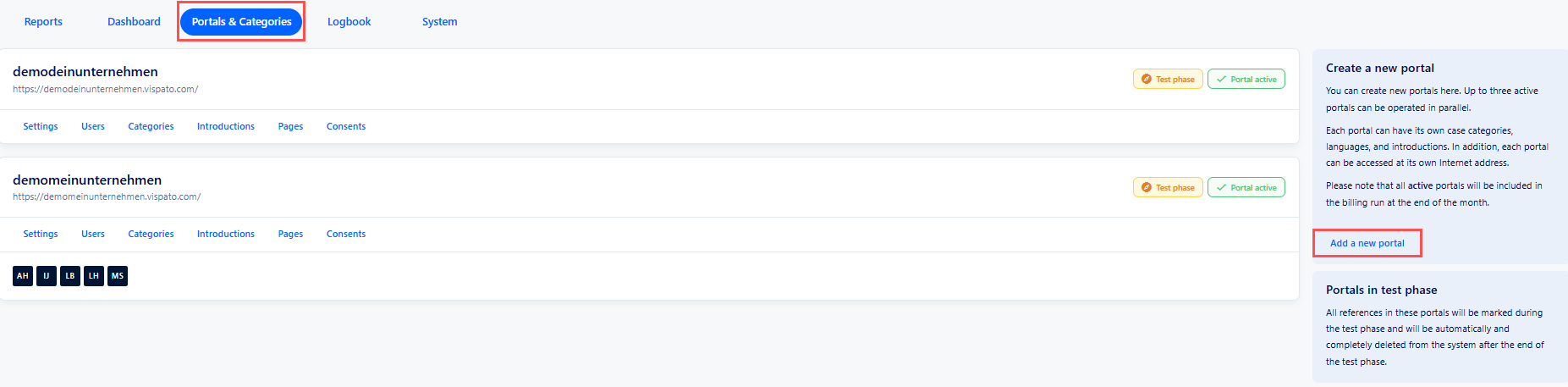
Once you have created a portal, several configuration options are available which are explained in detail in the following sections.
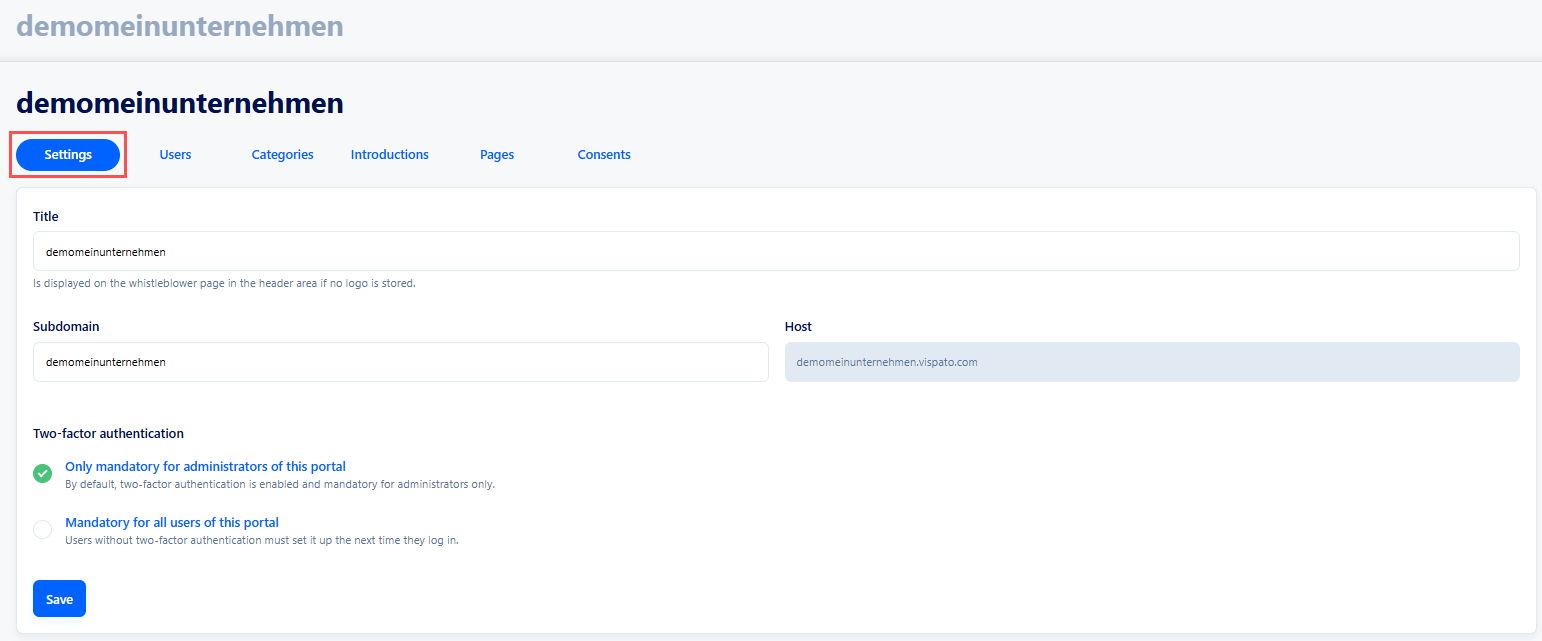
In the “Settings” section, you can define the subdomain of the whistleblowing system and configure the two-factor authentication settings. You can specify whether only administrators or all users of the portal must authenticate using a second factor.
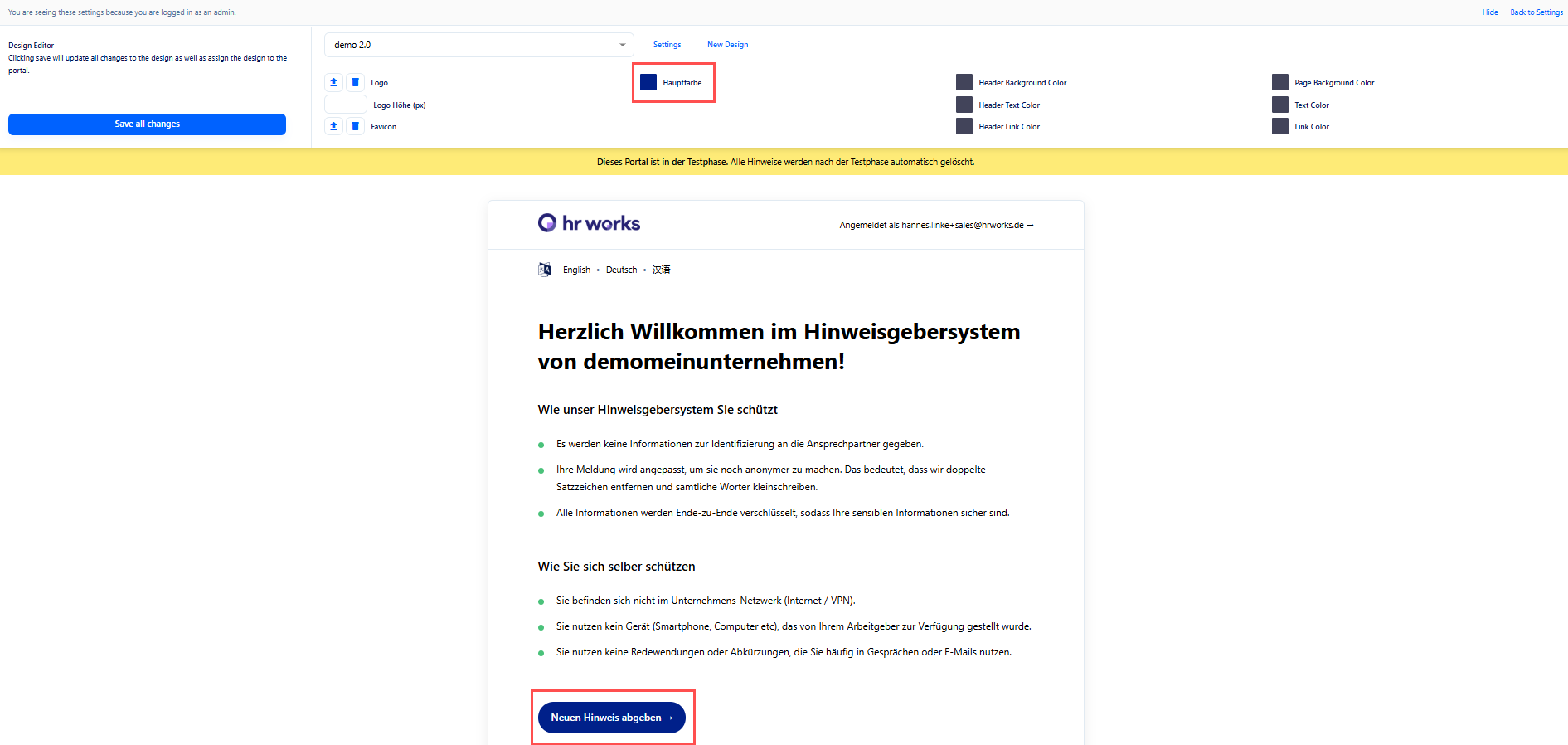
If you want to customize the design of your whistleblowing system’s homepage you can do so using the design editor which is located on the right side of the settings page.
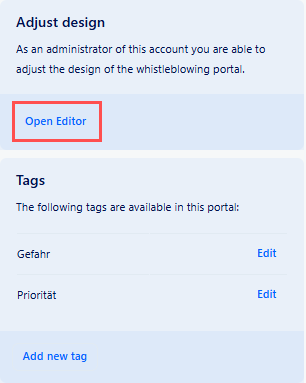
By clicking “Open Editor” the homepage of the whistleblowing system opens showing the same view that whistleblowers will see. To adjust the button for submitting a report modify the main color so that the button stands out.
In the “Users” tab, you can define which individuals are authorized to process reports in the portal.
By default users in HR WORKS with the role "Whistleblower System Administrator" are automatically added as contacts within the portal.
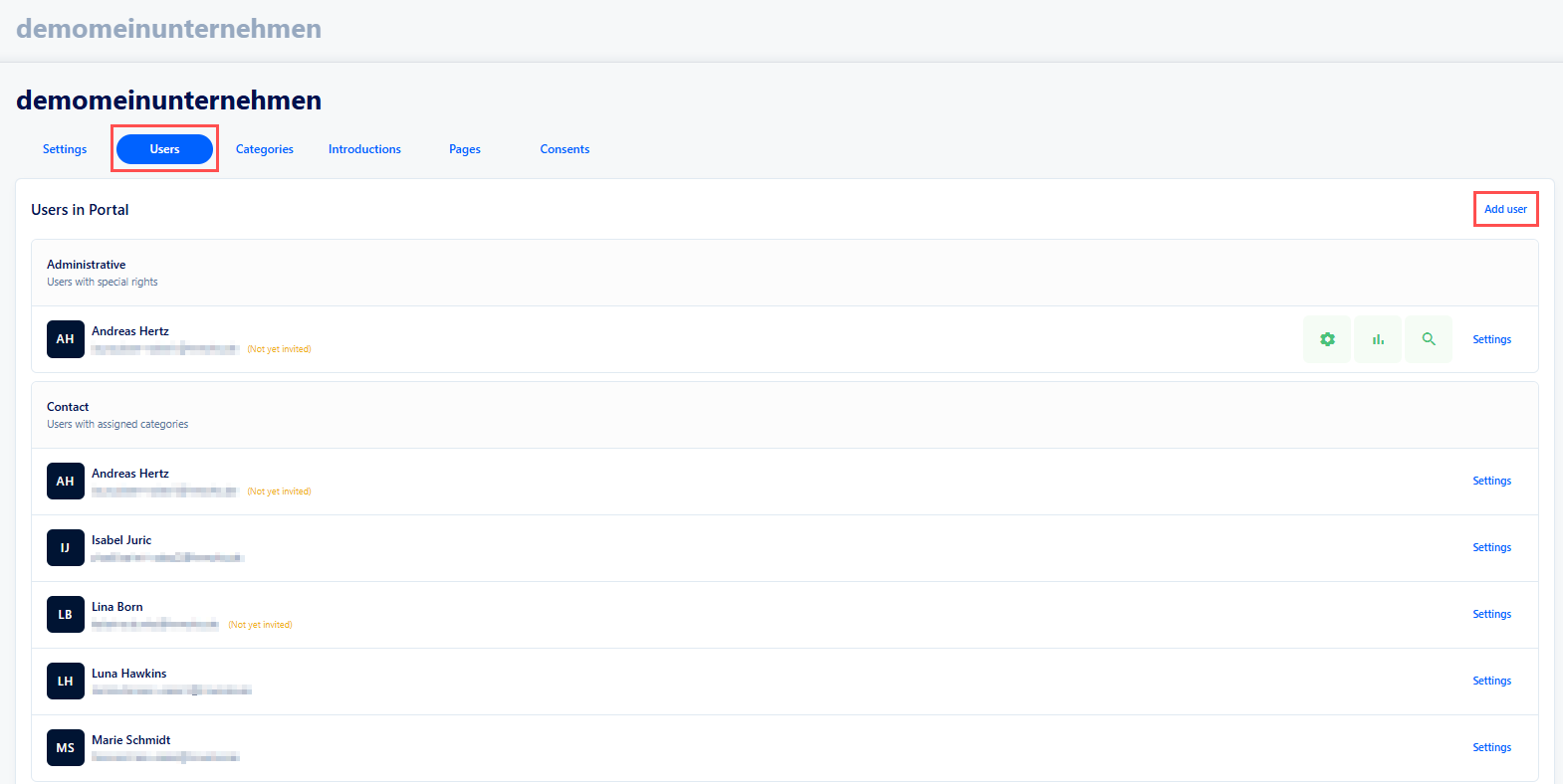
If you want to add a new user, click the “Add user” button and enter the user’s email address. In the next step you can define which categories and target languages the user should have access to.
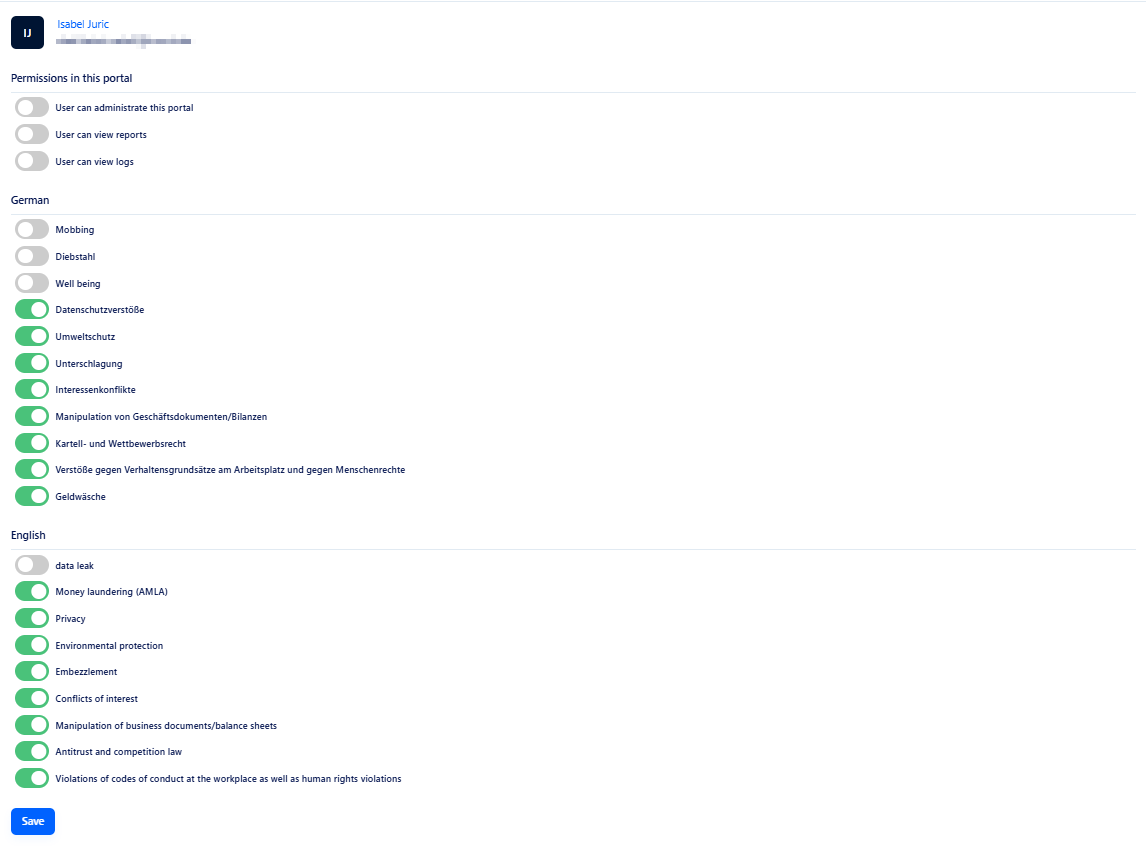
Tip: We recommend assigning at least two users per portal to ensure the four-eyes principle.
In the “Categories” tab, you can create your own new categories for reports. You can also select from templates that are already available in the whistleblowing system and have them translated into your desired target language. Existing categories can also be customized according to your requirements.
To add a new category click the “Add a new category” button.
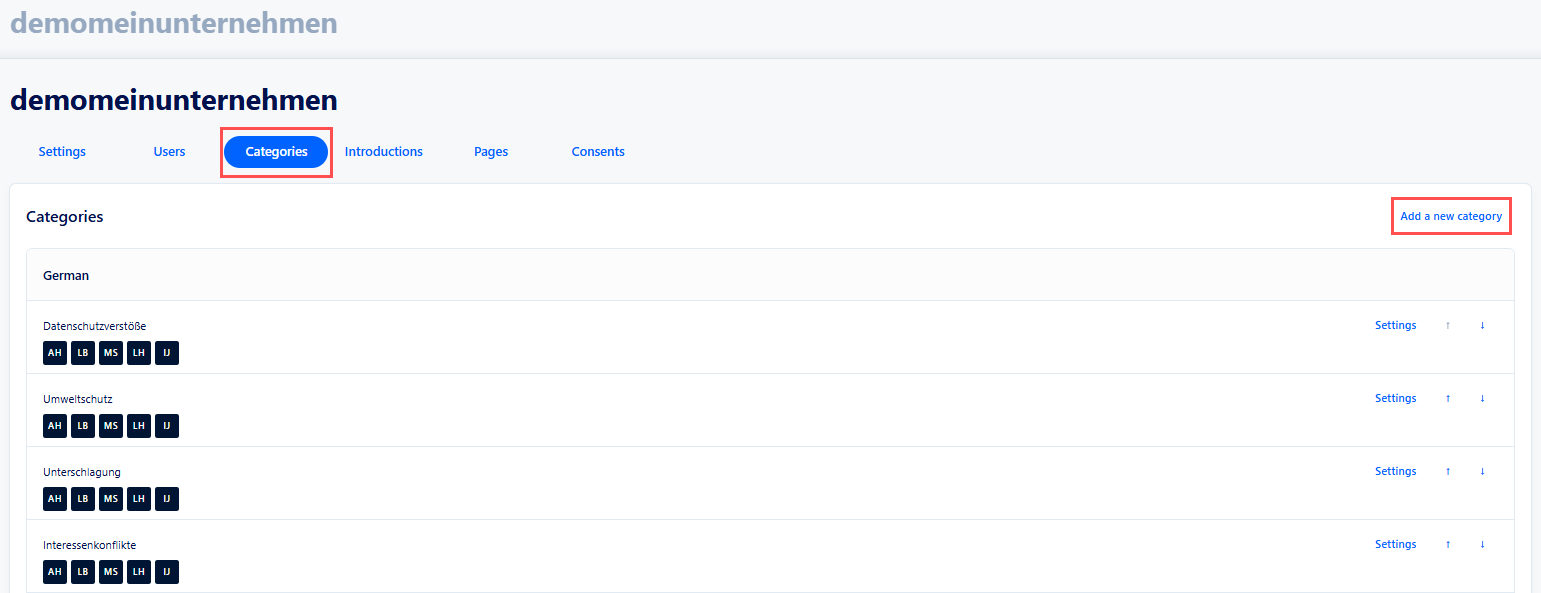
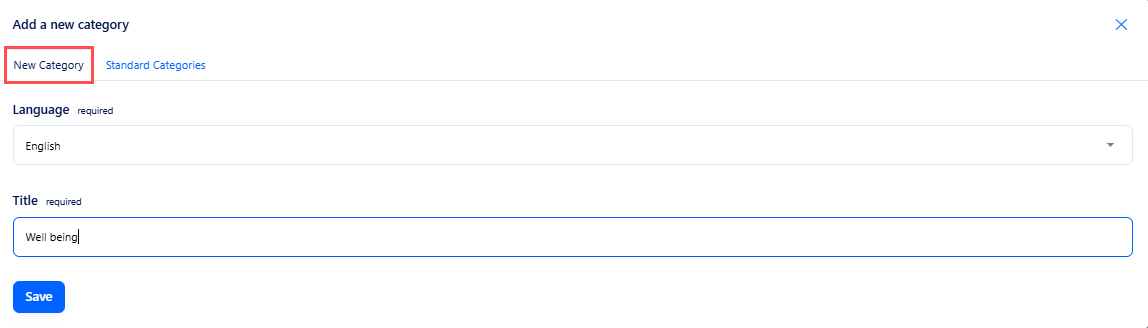
In the window that opens under the “New category” tab name the category and click “Save.”
You can then further define the category by setting deadlines and adding a description. Additionally, you can configure further settings related to the submission of reports.
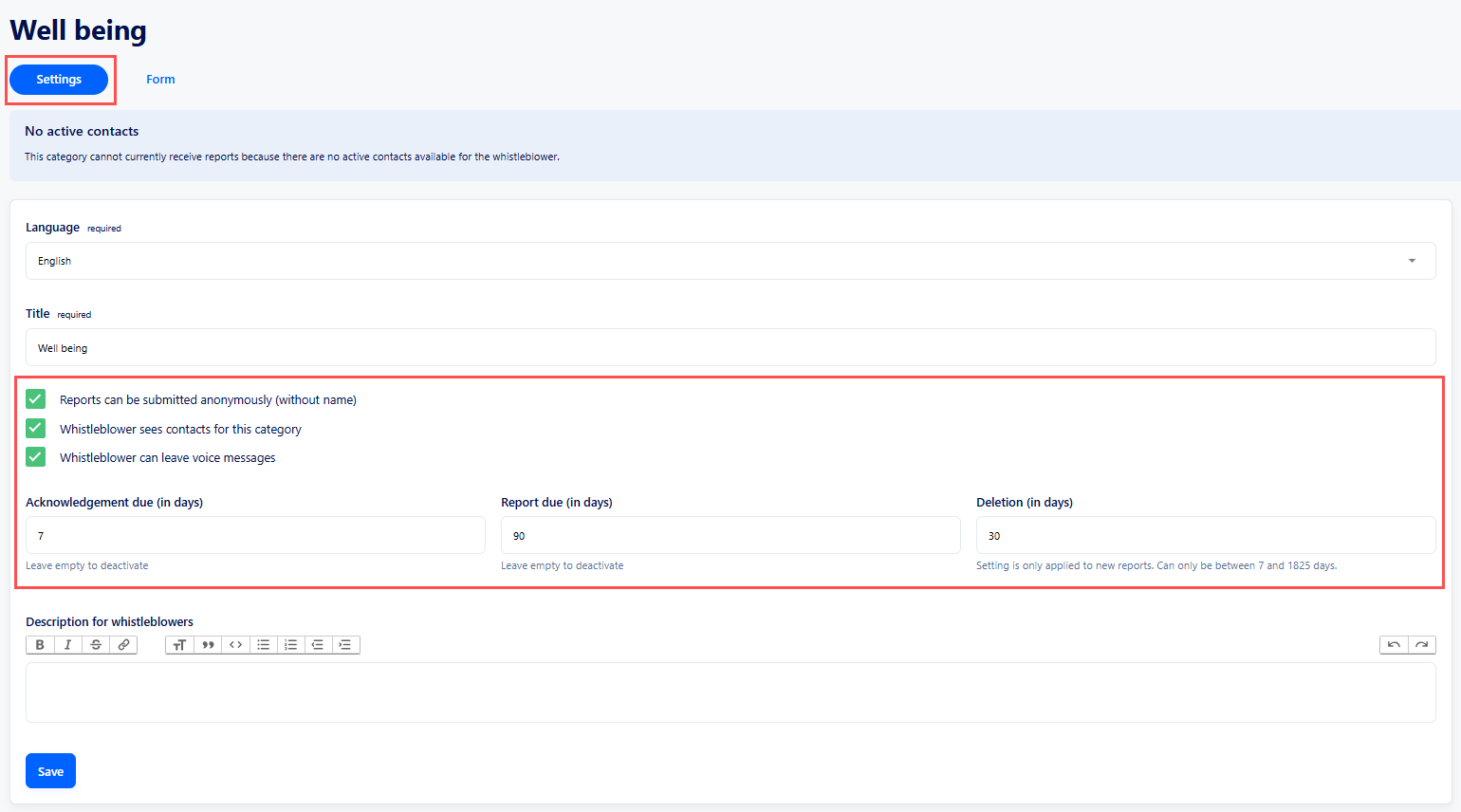
Note: The system already includes default deadlines according to German law. However, you can adjust these settings as needed.
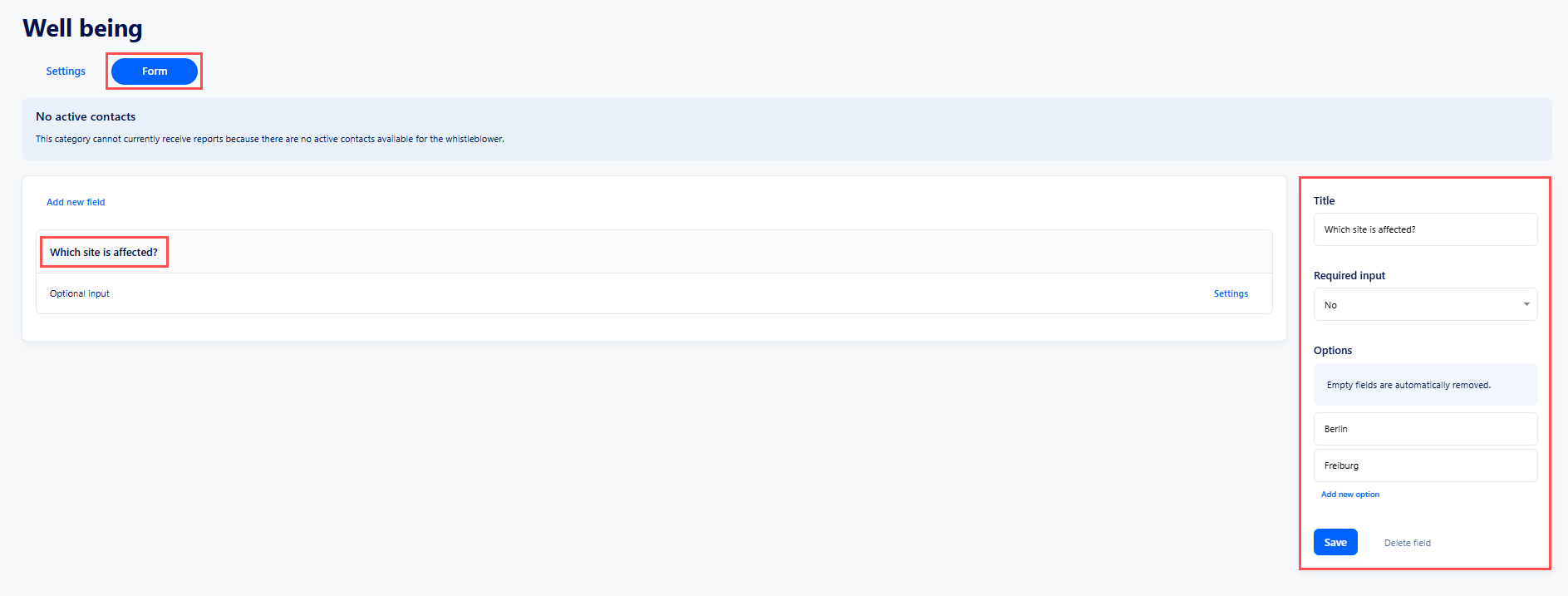
If you want whistleblowers to answer specific questions when submitting a report you can define these questions in the “Form” tab. Click “New field” and enter your information. You can also provide selection options which can be configured after creating the new field.
The created form applies only to the corresponding category.
If you want to display an existing category in another target language select the “Templates” tab and then choose the target language. Next select the categories you want to translate.
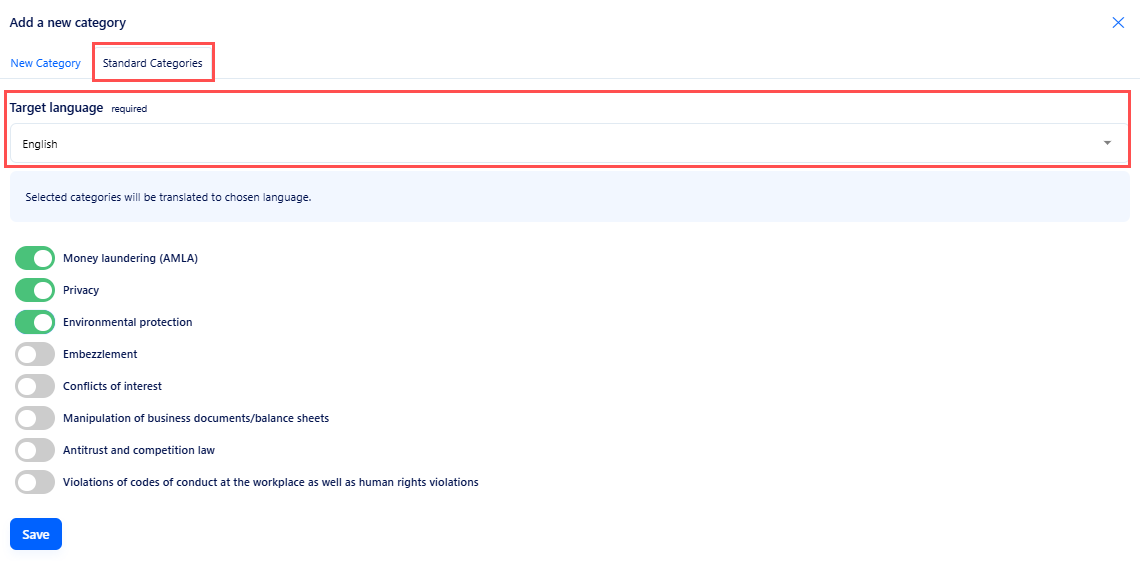
After completing the settings the categories will be displayed in the respective target language.
Note: As long as no report has been submitted for a category you can delete it at any time.
If you want to display an introductory text on the homepage of your whistleblowing system you can add it in the “Introductions” tab.

Click “Add new introduction” and select the target language for the introductory text. Then click “Add introduction” to define a title and write the introduction text.
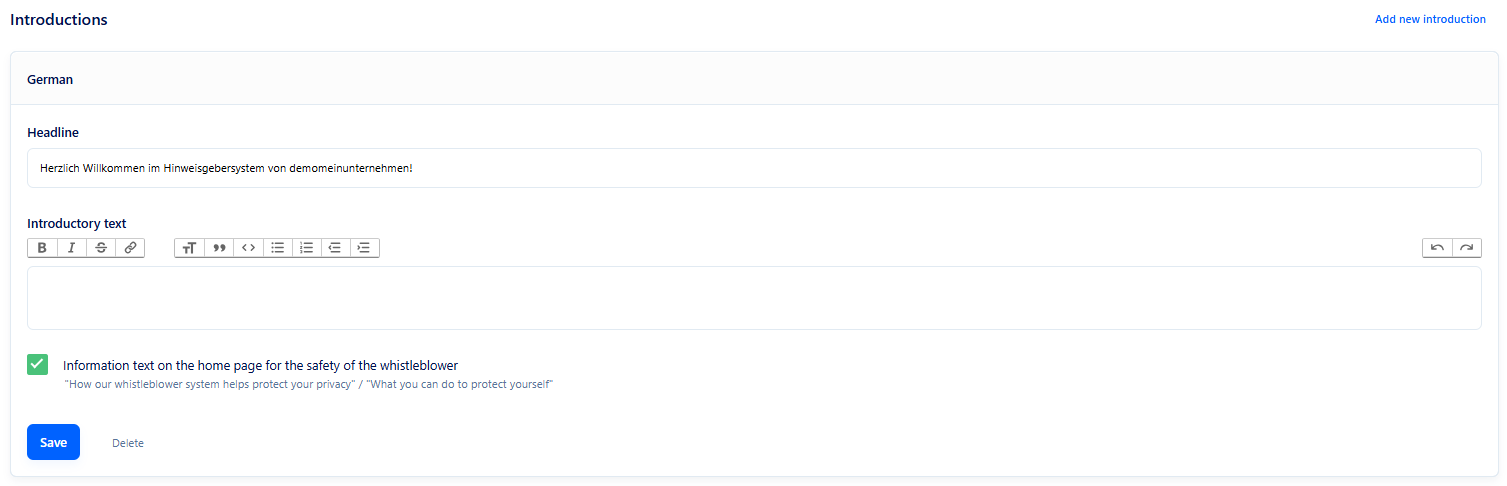
If your whistleblowing system is available in multiple target languages you should create a separate introduction text for each target language.
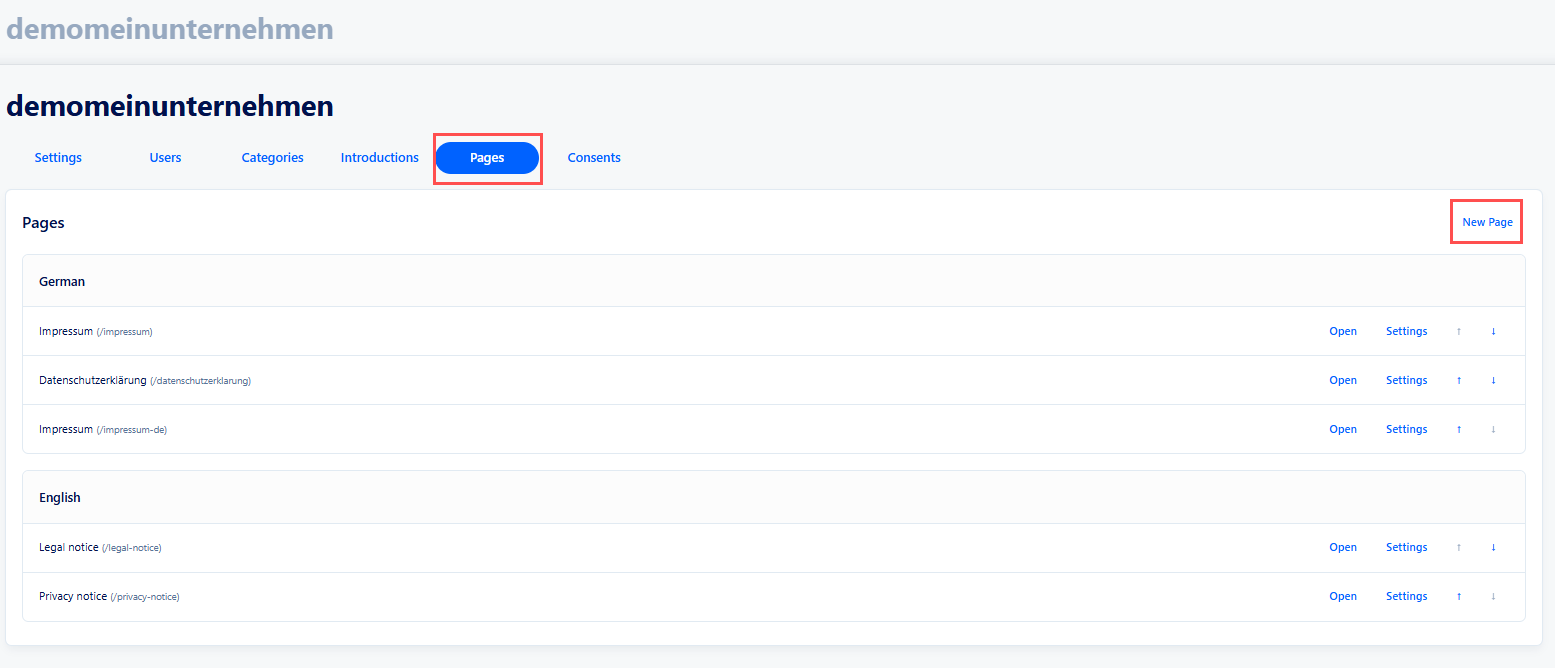
In the “Pages” tab, you can add a footer to the homepage of your whistleblowing system. In the footer, you can include information such as the imprint, privacy policy, etc.
Click “New Page” to create a subpage for the target language with a title. You can then either link to an external URL or define your own content.
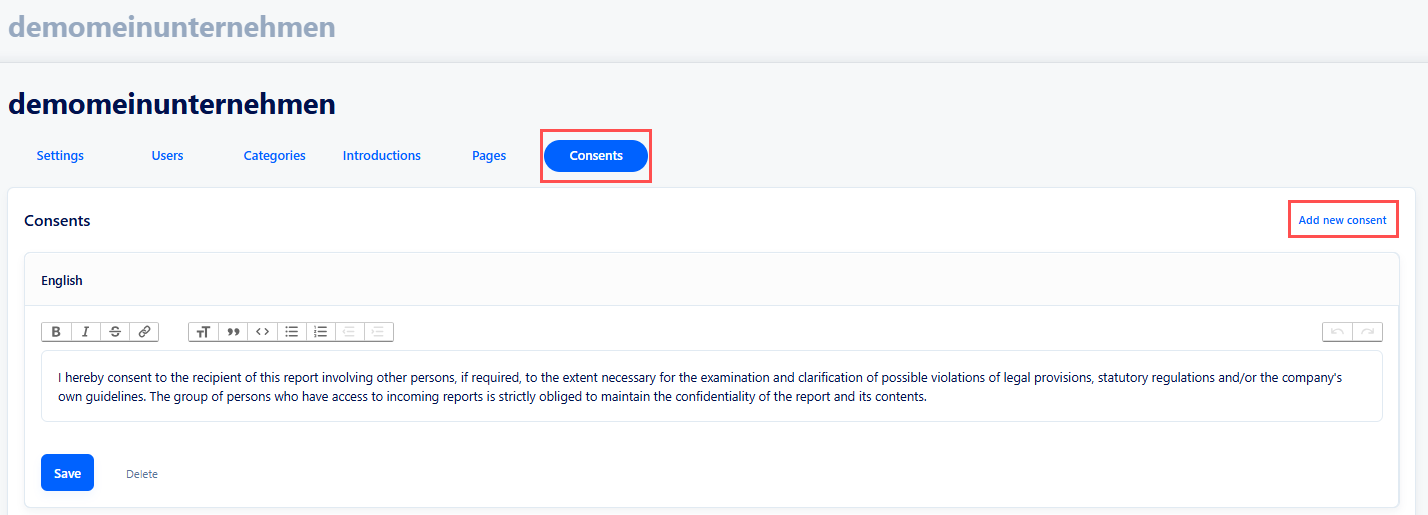
If additional persons (other employees, a lawyer, etc.) should be invited to participate in a report, you can obtain the whistleblower’s consent for this.
You can define this consent in the “Consents” tab by clicking “Add new consent” for the respective target language. The system provides a standard text that you can use or modify according to your requirements.